Open Settings
- 01
Select Account
Sign in and use the top-right account control in NewsLiquid.
- 02
Open Settings
The six tabs are Account, Referrals, Feed, Trading, Appearance, and Language.
- 03
Choose a section
Changes apply to the signed-in account or current browser as indicated by the page.
Account
The Account tab contains profile identity, wallet connection status, trading-performance summaries, Daily PNL sharing, and Disconnect. Today’s PNL is realized trading PNL; it does not include unrealized PNL on current positions.
Share to X first copies the poster and then opens the X composer. Paste the image into the post, check the text and image, then publish.
| Area | Use |
|---|---|
| Profile | Set an avatar and NewsLiquid ID. The name is 2–24 characters. Images may be PNG, JPG, or WebP up to 2 MB; select Save profile after editing. |
| Mobile | Enter a mobile number in Profile and save it. The current form accepts 11-digit mainland China mobile numbers. Saved numbers may appear masked. |
| Wallet connection | Check whether a wallet is connected. When an address is present, review the shortened form and copy the full address only when needed. |
| NewsLiquid Points | This currently shows Coming soon only. It has no usable balance, tasks, redemption, or billing; use Membership and PTS for MCP usage. |
| PNL Calendar | The calendar covers the first day of the current month through today. Its summary totals PNL, volume, and trades over those days. Hover a date for daily details; Refresh PNL reloads the data. |
| Today's PNL | Review the date and realized trading result for the current day. |
| Market PNL | Aliases for the same base symbol are aggregated. The heatmap follows the direction of total daily PNL and shows the three largest absolute markets plus Other. Area represents absolute PNL; color and signs identify direction. |
| Share Daily PNL | Preview the 1200 × 630 composition, then Copy image or Download a 2× PNG at 2400 × 1260, or Share to X. |
| Disconnect | End the current account connection after any pending signature or settings task is finished. |
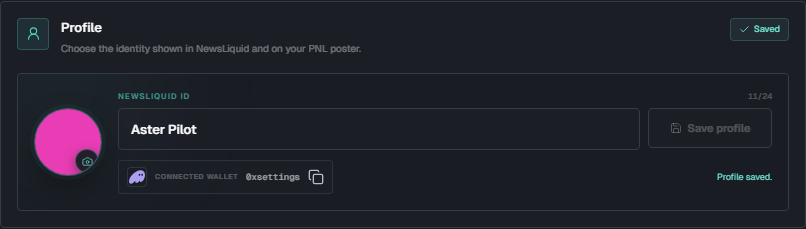
The identity and wallet status shown belong to the captured account. Your page may show different profile data or no connected wallet.
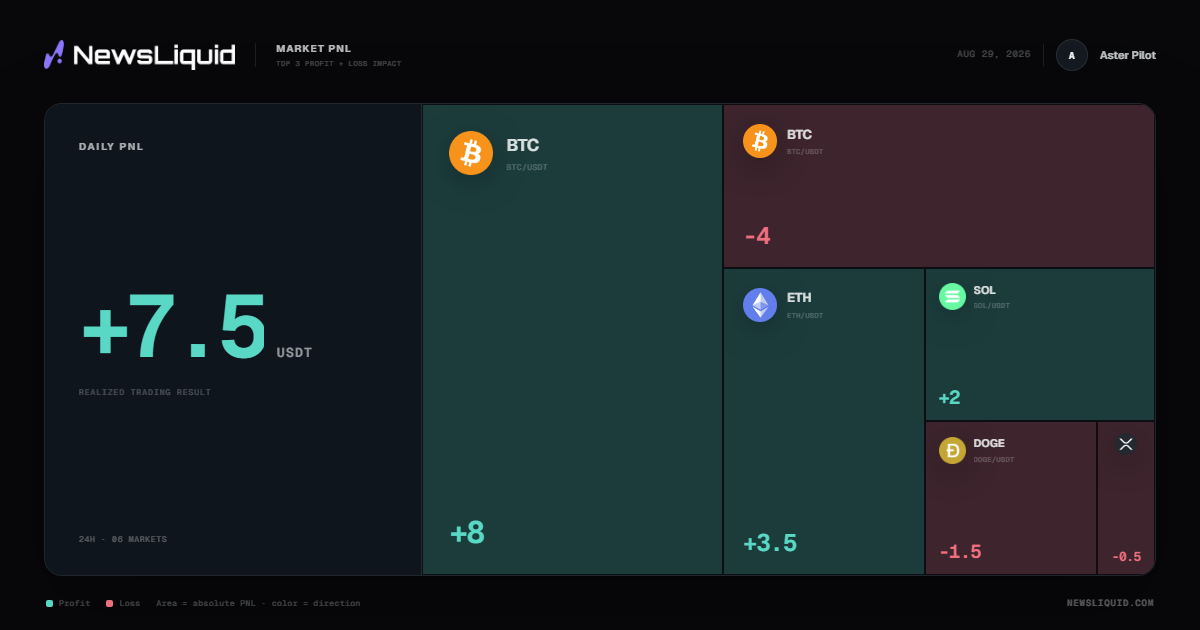
The date, profile, PNL, and market contribution shown come from a sample account. A new poster uses the current account and selected date.
Referrals
Sign in and open Settings / Referrals. The top of the panel shows Available Balance and the minimum withdrawal amount. Switch between Invite Codes, Invite Details, Commission Details, and Withdrawal Records.
To withdraw, select Request Withdrawal, choose Solana or BSC, and enter a whole-number USDT amount and a wallet address on that chain. The amount must meet the displayed minimum and stay within the available balance. Select Next, review the amount, fee, expected receipt, and full address, then select Confirm Withdrawal. Follow the review and processing status in Withdrawal Records.
Use the rate and unit shown in each commission record. Share the invitation link; redact balances, invited users, wallet addresses, and commission records before sharing a screenshot.
| Area | Use |
|---|---|
| Invite Codes | Select Copy Link to copy a link containing the invitation code. One code can be used by multiple people. |
| Invite Details | Review invited users and the invitation code they used. |
| Commission Details | Review the payer, order amount, rate, commission, status, and time. A commission can be shown as money or quota; read its unit. Refresh or use pagination to view records. |
| Withdrawal Records | Review the amount, chain, wallet address, transaction hash, status, and time. Refresh or use pagination to view records. |
Feed
Read the highlighted preset, toggle states, checked sources, and enabled count before changing anything. They may be new-account state or values already saved in this browser. Selecting a preset replaces the current source selection; editing individual sources then changes the state to Custom. Select Apply configuration and confirm the result in the feed.
| Setting | Use |
|---|---|
| Preset | Custom, US Equities, Crypto, or Technical Indicators |
| Duplicate filtering | Reduce repeated reports of the same event |
| Only with a coin | Hide stories without a related coin or market |
| Collapse trading pairs | Collapse the related-pair area of each card when enabled |
| Content density | Compact, Standard, or Professional layout |
| News font size | Decrease, increase, or reset the main card text |
| Data sources | Enable supported news, listing, strategy, meme, and market-event categories |
| Preset | What selection does | How to verify |
|---|---|---|
| US Equities | Loads the product’s current source set for U.S. companies, macro news, and institutional activity | Inspect the checked sources, enabled count, and estimated volume below |
| Crypto | Loads the product’s current source set for crypto, exchanges, and social activity | Inspect the checked sources, enabled count, and estimated volume below |
| Technical Indicators | Loads the product’s current market-event and derivatives-signal set | Inspect the checked sources, enabled count, and estimated volume below |
| Custom | Keeps a manually selected source set | Review each news, listing, strategy, meme, and market-event category |
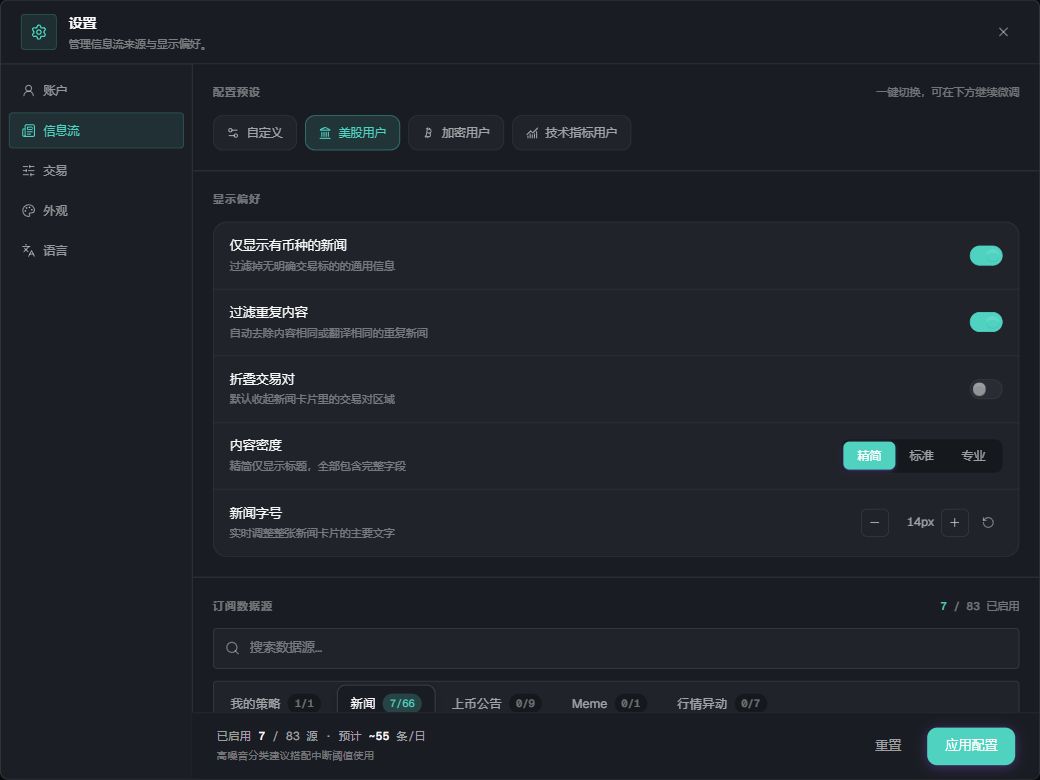
The highlighted preset, toggles, and enabled-source count belong to the captured account. Read your current state before applying changes.
Trading
The values shown here are saved account settings, not recommendations. Read them before editing and return to the order panel after saving to verify the applied provider, leverage, size, and risk values. To hide the amount buttons on supported news cards, turn off Quick trading.
| Area | Use |
|---|---|
| Connections | CEX APIs and wallet-based providers; status depends on the account |
| Default values | Starting provider, leverage, position amount, take profit, and stop loss for later order forms |
| Quick trading | Controls whether supported news-market rows show direct order amounts |
| CEX quick amounts | Account-configured USDT values that can be added, removed, and reordered |
Appearance
Choose a built-in theme or Custom. Custom options include page background, panel background, buy color, and sell color. The highlighted theme belongs to the current account. Buy and sell colors change appearance only; read the direction label and order parameters before trading.
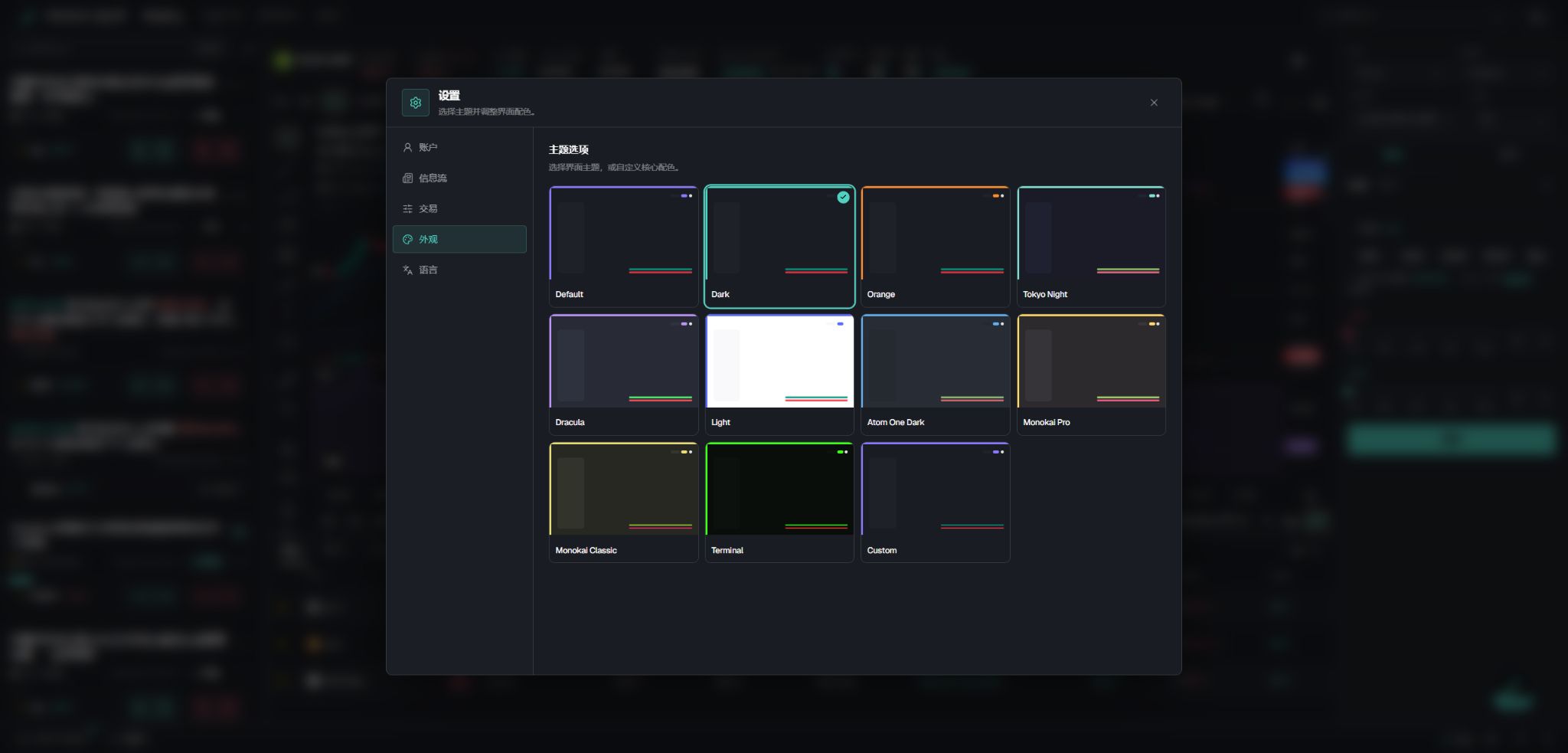
The highlighted theme and custom colors belong to the captured account. Read the active theme on your page before changing it.
Language
Choose Simplified Chinese or English for the product navigation, settings, and interface text.