What you will complete
This guide is read-only. It does not connect an exchange or place an order.
Sign in
- 01
Open NewsLiquid
Go to app.newsliquid.com. The top navigation contains News, Agent OS, Strategy, XPlus, and MCP. News opens news trading, and XPlus opens Twitter monitoring.
- 02
Open Account
Select Account in the top-right, then choose Google or wallet sign-in. A wallet login should request a message signature only. Cancel if it requests a transfer or token approval.
- 03
Check the account state
Open Account again. A signed-in account can open Settings and its Account, Feed, Trading, Appearance, and Language pages.
Configure the feed
- 01
Read the saved state
Check the highlighted preset, toggle states, and enabled-source count. They may come from a new account or a configuration already saved in this browser.
- 02
Choose a preset
Select the closest audience preset, then inspect the sources it actually checks. Enable duplicate filtering when you want fewer repeated reports.
- 03
Adjust and apply
Choose a readable density and font size, keep the required categories, then select Apply configuration. Confirm the result from the enabled count and returned stories.
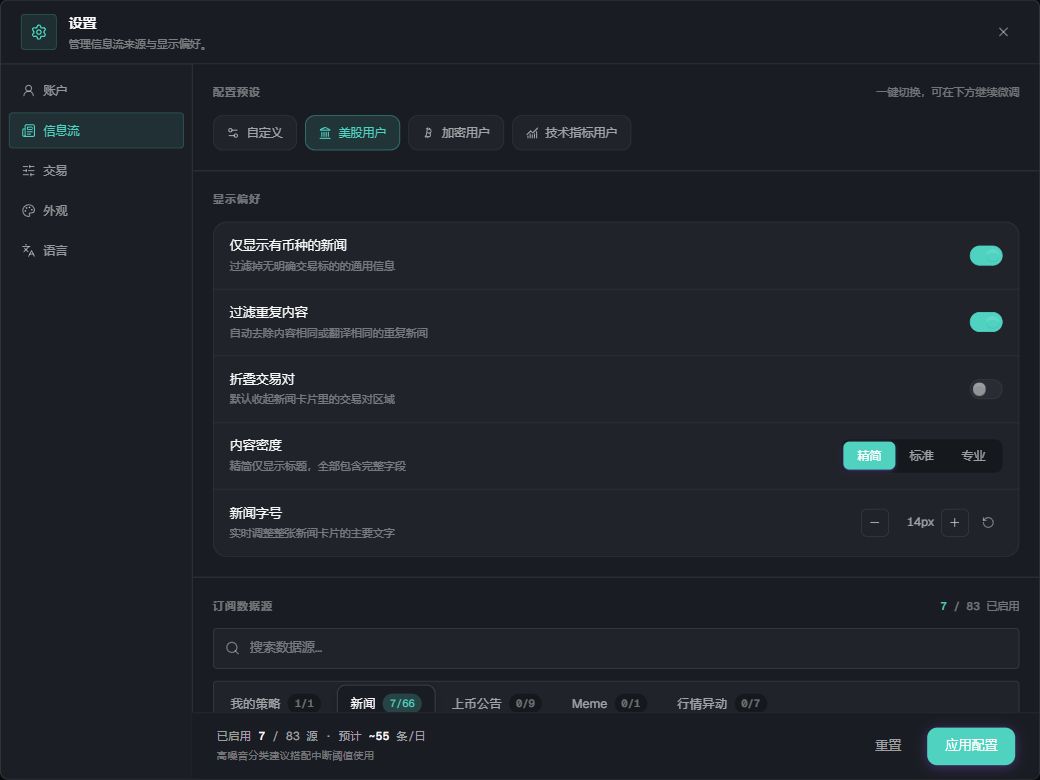
The highlighted preset, toggles, and enabled-source count belong to the captured account. Read your current state before applying changes.
Run the first analysis
- 01
Open News Trading
Find the news feed, market chart, order controls, and order or position area in the current layout. A narrow window may collapse some regions.
- 02
Search a market
Enter a ticker you follow. If you only need a read-only example, use BTC. Wait for the list to refresh.
- 03
Check one story
Read the title, source, publication time, related market, and original link. Use the original source for important decisions.
- 04
Switch the chart
Select the related ticker on the card, then verify the chart market, venue, pair, and timeframe.
- 05
Ask the Agent
Select Agent in the right sidebar and check the “will include” context above the prompt. Ask for confirmed facts, possible effects, and items that still need verification. Use Open Agent in floating window when you need more space.
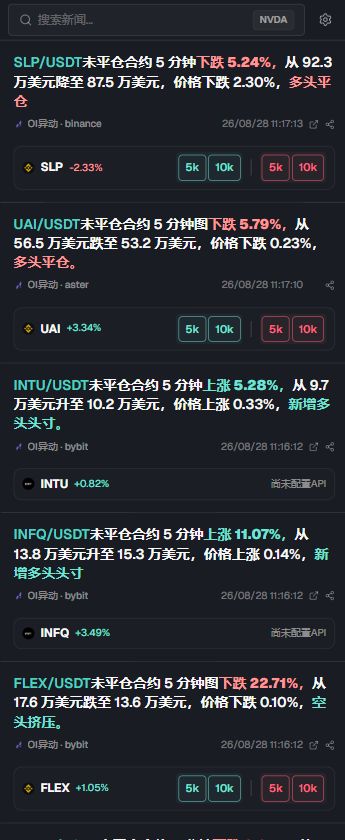
One story can relate to several markets. Quick-order amounts are account settings; scores, price changes, and publication times are examples from the captured feed.
Confirm the result
Settings opens for the signed-in account.
The feed configuration has been applied.
The news card and chart show the same market.
The Agent context contains the intended page or story.
The answer includes sources or verification items.
No order or position was created.